Switching guide
📦Move your league table from TeamSnap to Simple Standings
TeamSnap exports a team schedule as a text file and a roster as CSV, but not results or standings. How to get what it does export into Simple Standings and publish one public table for the league.
By The Simple Standings team · Updated November 8, 2026 · Facts about other products checked November 8, 2026
Before you start
- You probably do not need to leave TeamSnap. Teams can stay on it while the league table lives on Simple Standings.
- The schedule exports as a text file you can open in a spreadsheet: Schedule, Settings, Sync Calendar/Export, Export Text File.
- Results and standings do not. TeamSnap’s help centre documents no export of scores, the team record or standings, so you type the table in once.
- Rosters export as CSV, if you want player names for a stats table.
What comes across, and what does not
We do not have an account on it, so its steps below are what its own help centre says, linked under Sources. The Simple Standings steps were run on a local build.
- Schedule: each team’s games from the exported text file. Export one team’s schedule and you have every game that team plays; the league schedule is all the teams’ files combined, minus duplicates.
- Players: names from the roster CSV (custom fields are not included in TeamSnap’s export), for a player stats table.
- Not coming across: results, records and standings, plus availability, chat and payments, which stay in TeamSnap.
Step by step
From TeamSnap to a public league table, step by step
- 01
Export the schedule from TeamSnap
On the web, open the team’s Schedule, then Settings, then Sync Calendar/Export, and click Export Text File at the bottom of the page. Open the file in a spreadsheet and keep the date, time, opponent and location columns.
- 02
Export the roster, if you track player stats
On the web, open Roster, then Export, then Export CSV File.
- 03
Type the current standings in once
TeamSnap shows each team’s win-loss record on its Home tab. Note each team’s record; that becomes the starting table. From then on, results go straight into Simple Standings.
- 04
Create the league in Simple Standings
Start a free league and pick your sport, so the standings columns come prefilled. You can import at this step, or later from the editor.
- 05
Open Import from a spreadsheet
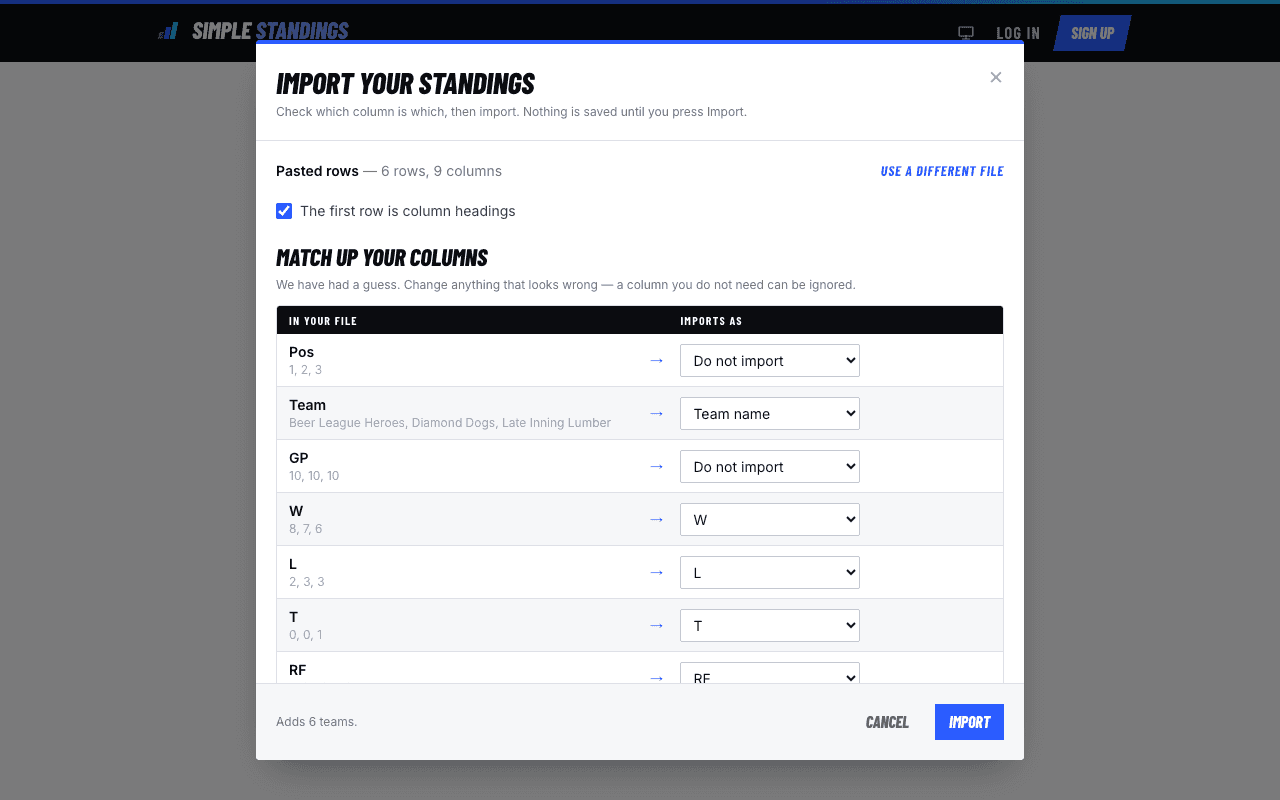
Each table (standings, schedule, statistics) has an Import from a spreadsheet button. Drop in a CSV, TSV or Excel file, or choose paste rows straight from your spreadsheet and paste the schedule rows from your spreadsheet.
- 06
Match the columns
Tick The first row is column headings if it is. For each column, choose what it imports as: an existing column, the team name, Add as a new column, or Do not import. Nothing is saved until you press Import.
- 07
Share the new link
Copy the league’s link or print its QR code, and send it where the old one went: the group chat, the league email, the venue’s notice board.
Keep using TeamSnap for
- Availability, RSVPs and who-brings-what assignments.
- Team messaging and the phone app’s notifications.
- Collecting fees from players or parents.
- Clubs on TeamSnap for Business or Clubs & Leagues that already publish standings on their TeamSnap website.
What Simple Standings will not replace
- Anything inside a team: RSVPs, chat, assignments, payments.
- A native app with push notifications.
- An automatic import of past results, since TeamSnap does not export them.
- Ad-free pages without paying: ads show unless you pay $9.99 once.
Questions
Frequently asked
- Can I export standings or scores from TeamSnap?
- Not that TeamSnap’s help centre documents. It covers exporting a team schedule as a text file, a roster as CSV and, on Premium or Ultra, availability. Results, records and standings are not mentioned.
- Do my teams have to stop using TeamSnap?
- No. Keep each team on TeamSnap and share the Simple Standings link in the team messages. They are doing different jobs.
- Why not publish standings on TeamSnap itself?
- You can, on TeamSnap for Business or Clubs & Leagues, through the Website Builder’s Division module. Team plans have no public team page and no league table.
Sources, checked November 8, 2026
- TeamSnap help: Export or print a team schedule
- TeamSnap help: Export roster list
- TeamSnap help: Reset team record
- TeamSnap help: Configuring the Division module in Website Builder (standings)
- TeamSnap help: General troubleshooting (public team sites ended 2017)
Product names belong to their owners. Simple Standings is not affiliated with any product compared here. Spot something out of date? Tell us and we will fix it.
One table for the whole league
Keep the teams on TeamSnap. Give everyone one public link for standings.